String Operations
String operations provide powerful tools for manipulating, searching, and extracting information from text data. These operations enable users to clean text, find patterns, replace values, and extract structured data from unstructured text fields.
String Operations Available
- Strip
- Occursin
- Replace
- Regex Match
- Split
Strip
Remove leading and trailing whitespace or specific characters from text values.
Functionality:
- Remove whitespace from both ends of text
- Remove specific characters by providing a pattern
- Useful for cleaning data with inconsistent spacing
- Only removes characters from the beginning and end of strings, not from the middle
Example: Removing suffix " POSTDOSE" from time point descriptions. 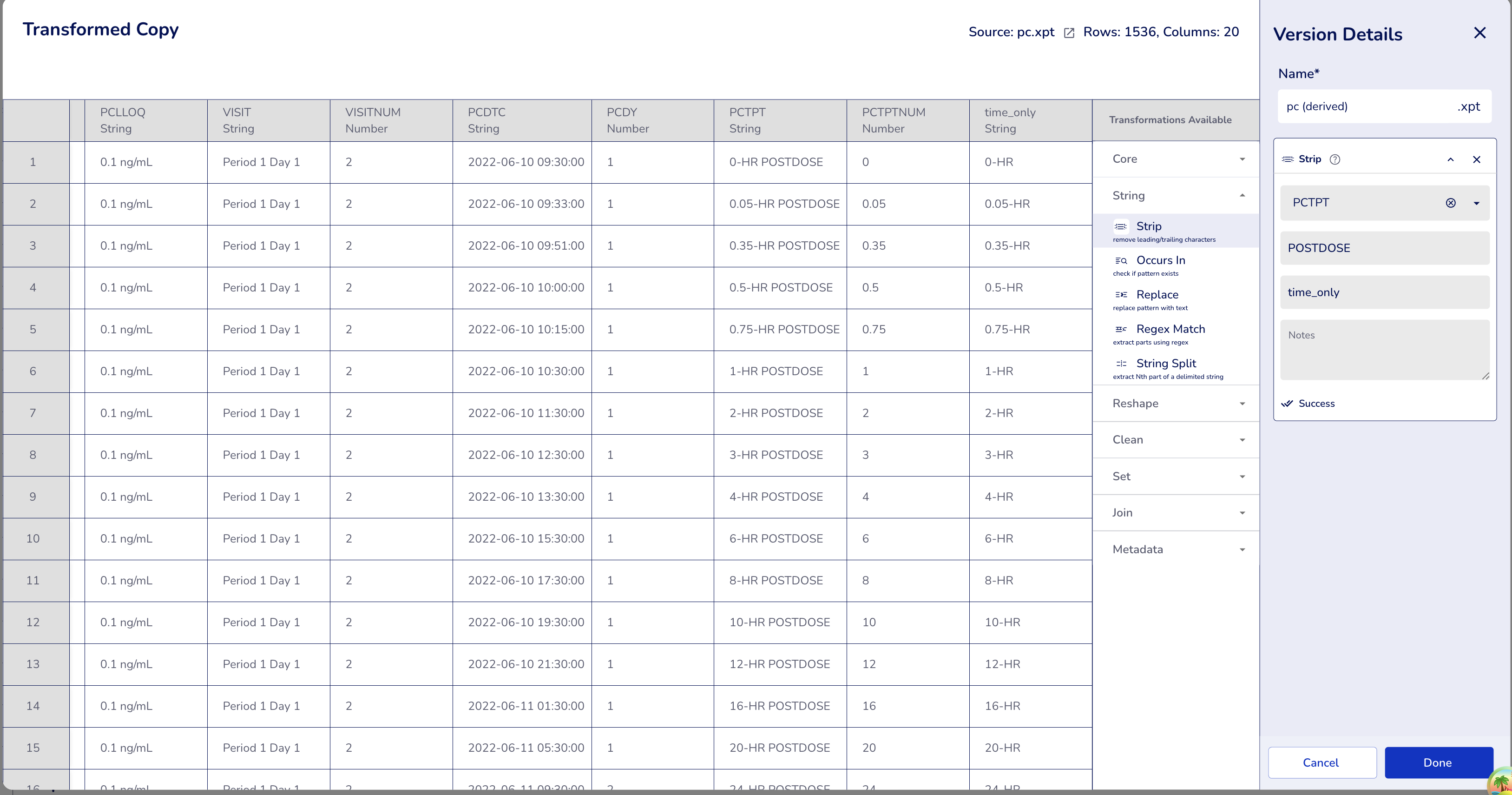
Dataset: PC dataset
Configuration:
- Operation:
Strip - Column:
PCTPT(PK Time Point) - Pattern:
POSTDOSE(note the leading space) - Output Column:
time_only(optional - leave empty to modify in-place)
Result: Removes the " POSTDOSE" suffix, leaving only the time value
- "0-HR POSTDOSE" → "0-HR"
- "0.05-HR POSTDOSE" → "0.05-HR"
- "0.5-HR POSTDOSE" → "0.5-HR"
- "1-HR POSTDOSE" → "1-HR"
- "24-HR POSTDOSE" → "24-HR"
- "PREDOSE" → "PREDOSE" (no change - doesn't contain the pattern)
Occursin
Check whether a pattern or substring exists within text values, returning true or false.
Functionality:
- Search for literal text within text values
- Returns a boolean (true/false) column indicating whether the pattern was found
- Case-sensitive matching (e.g., "postdose" will not match "POSTDOSE")
- Searches anywhere within the string (beginning, middle, or end)
- Useful for filtering or flagging records that contain specific text
Example: Identifying post-dose time points. 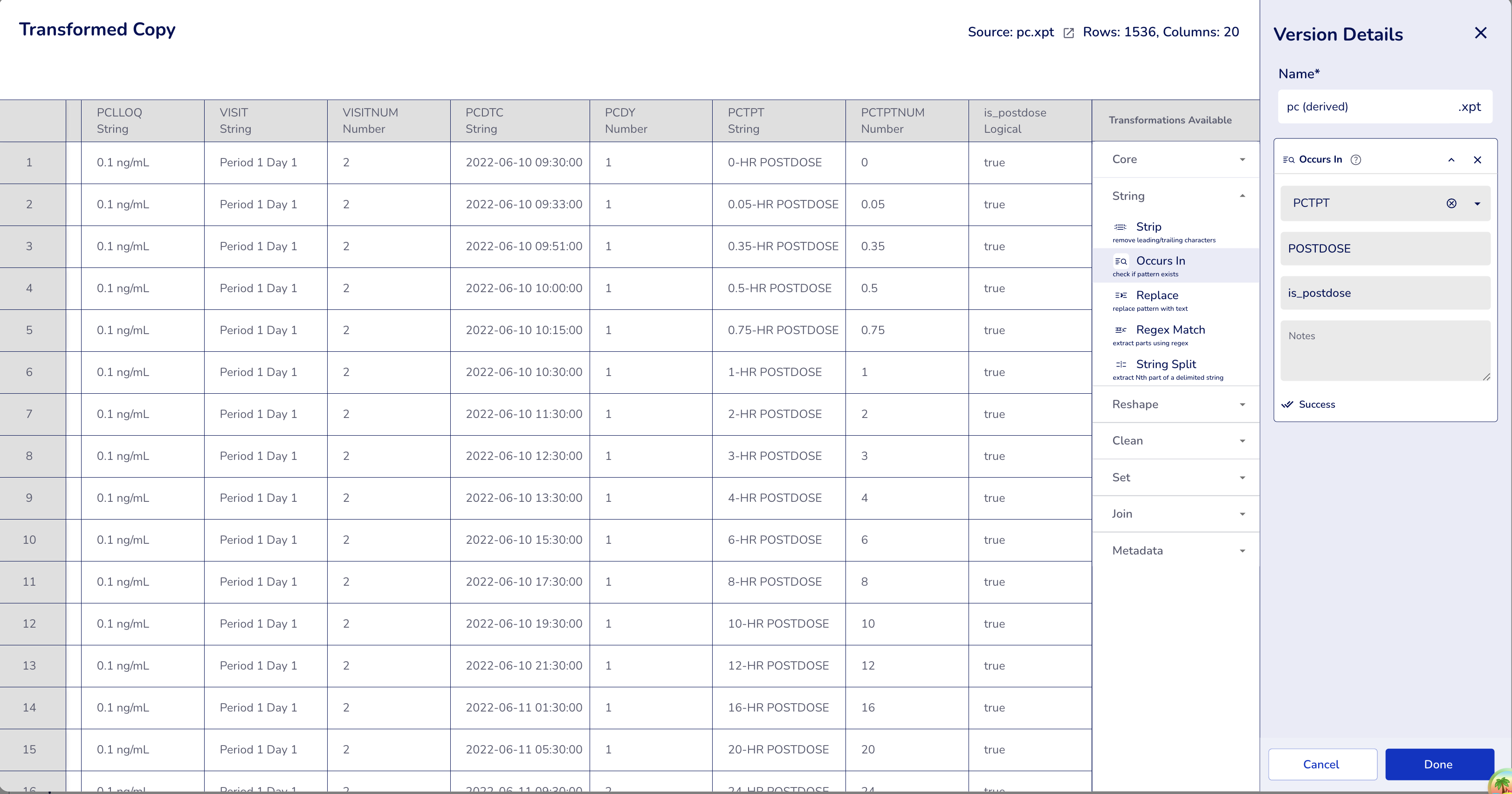
Dataset: PC dataset
Configuration:
- Operation:
Occursin - Column:
PCTPT(PK Time Point) - Pattern:
POSTDOSE - Output Column:
is_postdose(required — Occursin always creates a new boolean column to preserve the original text column)
Result: Returns true/false indicating if "POSTDOSE" substring exists
- "0-HR POSTDOSE" → true
- "0.05-HR POSTDOSE" → true
- "1-HR POSTDOSE" → true
- "24-HR POSTDOSE" → true
- "PREDOSE" → false
- "Screening" → false
Replace
Replace occurrences of a pattern or substring with a new value.
Functionality:
- Find and replace literal text
- Replace all occurrences within each text value
- Case-sensitive matching (e.g., "ng/ml" will not match "ng/mL")
- Replaces every occurrence within the string, not just the first match
- For flexible replacements with patterns, use Regex Match instead
Example: Standardizing lower limit of quantification units. 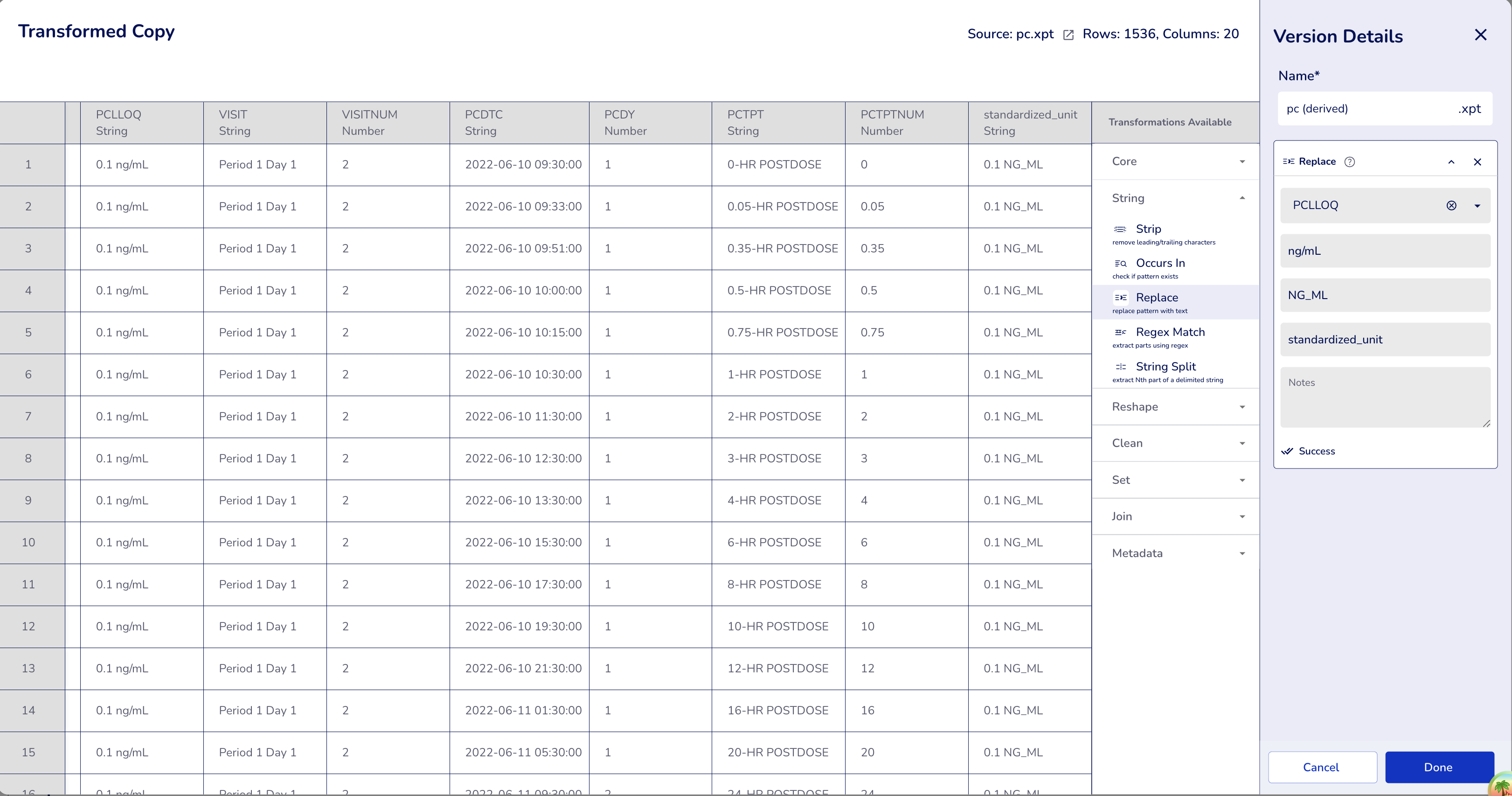
Dataset: PC dataset
Configuration:
- Operation:
Replace - Column:
PCLLOQ(Lower Limit of Quantification) - Pattern:
ng/mL - Replacement:
NG_ML - Output Column:
standardized_unit(optional - leave empty to modify in-place)
Result: Replaces the unit format for all 1536 rows
- "ng/mL" → "NG_ML"
- "ng/mL" → "NG_ML"
(All LLOQ values have the same unit in this dataset)
Regex Match
Extract structured data from text using regular expressions with capture groups. This powerful operation allows you to parse complex text patterns and split information into separate columns.
Functionality:
- Use regex patterns with capture groups
()to extract specific portions of text - Each capture group creates a new column with extracted values
- Automatically detects the number of capture groups and creates corresponding output column fields
- Optional Flags field to control matching behavior (case sensitivity, multiline, dotall)
- Output column(s) are required — Regex Match always writes to new columns to preserve the original text column
- Without capture groups, returns boolean (true/false) indicating if pattern matches
- Returns
missingfor rows where the pattern doesn't match
Example 1: Basic Pattern Without Flags (Single Capture Group)
Extract subject numbers from USUBJID identifiers.
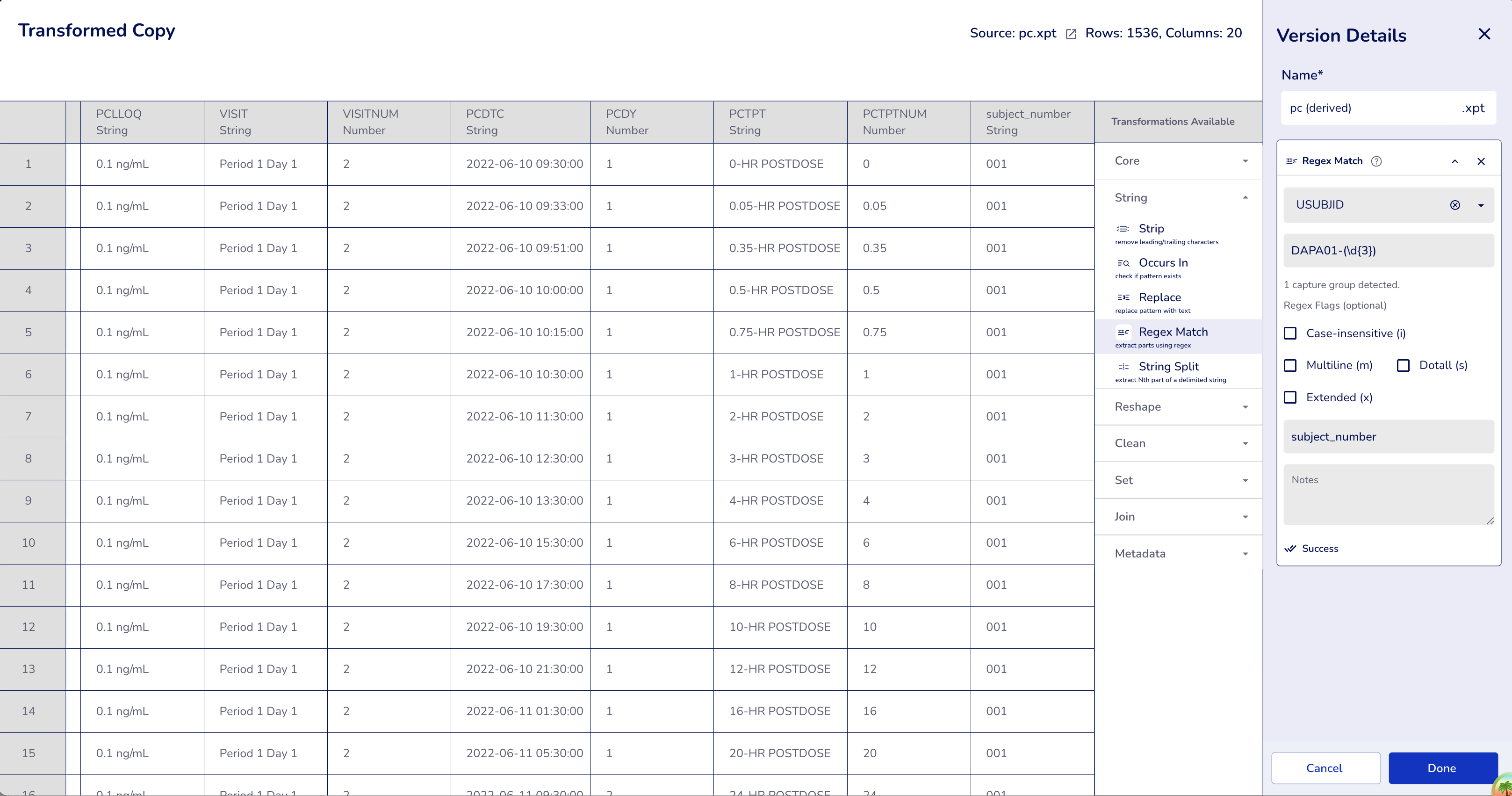
Dataset: PC dataset
Configuration:
- Operation:
Regex Match - Column:
USUBJID(Unique Subject ID) - Pattern:
DAPA01-(\d{3})(captures 3 digits after "DAPA01-") - Flags: `` (empty - case-sensitive, default behavior)
- Output Column:
subject_number
Result: Extracts the 3-digit subject ID from all 1536 rows
- "DAPA01-001" → "001"
- "DAPA01-002" → "002"
- "DAPA01-010" → "010"
- "DAPA01-101" → "101"
Example 2: Multiple Capture Groups (Multiple Output Columns)
When you enter a regex pattern with multiple capture groups, the interface automatically detects them and creates a separate output column name field for each group. This enables extracting multiple pieces of information from a single text field.
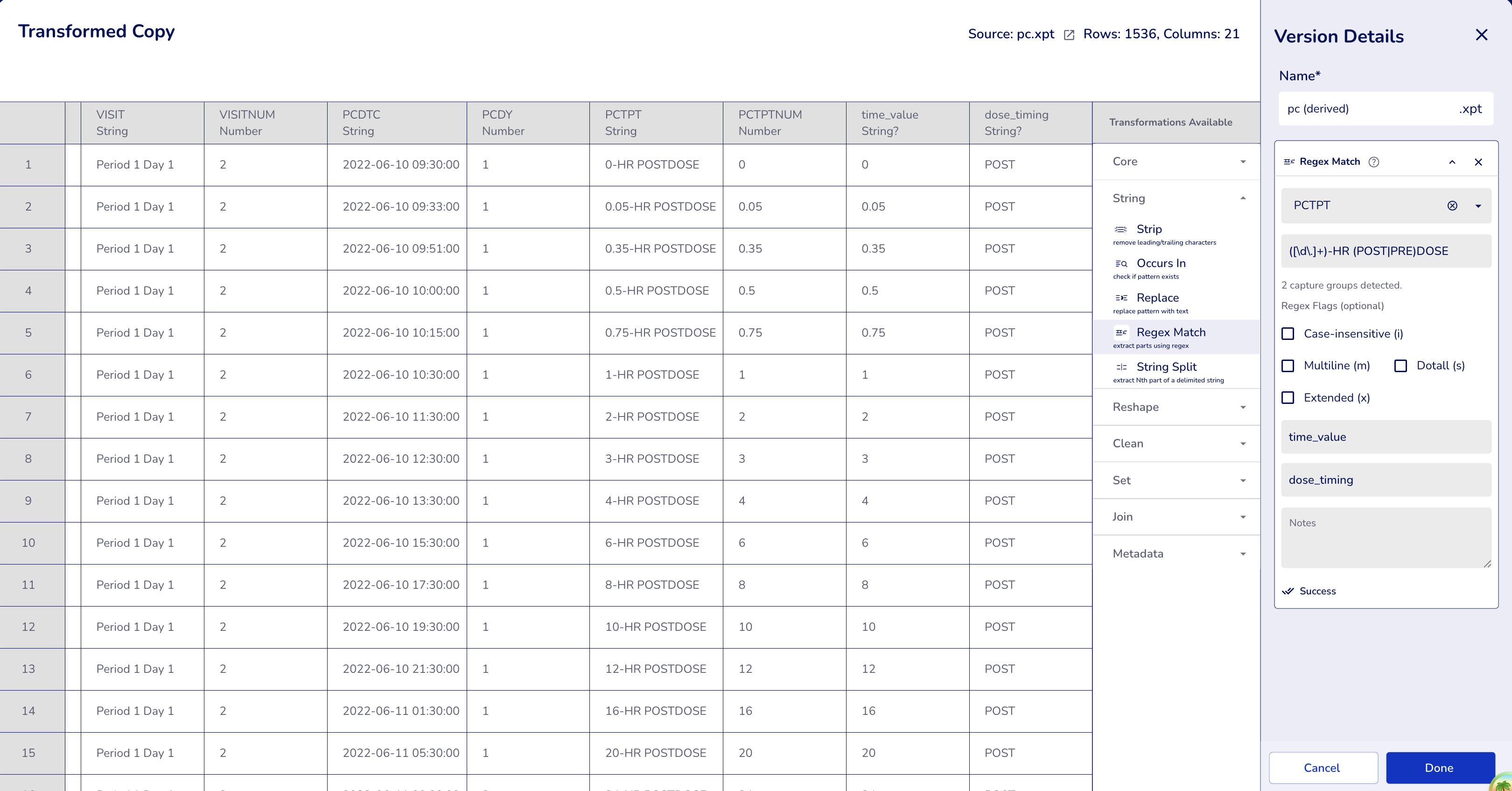
Pattern: Parsing time point descriptions to extract time value and dose timing.
Configuration:
- Operation:
Regex Match - Column:
PCTPT(PK Time Point) - Pattern:
([\d\.]+)-HR (POST|PRE)DOSE(two capture groups) - Flags: `` (empty - case-sensitive)
- Output Columns:
- Column 1:
time_value - Column 2:
dose_timing
- Column 1:
Example 3: With Single Flag (Case-Insensitive Matching)
Compare case-sensitive vs case-insensitive pattern matching.
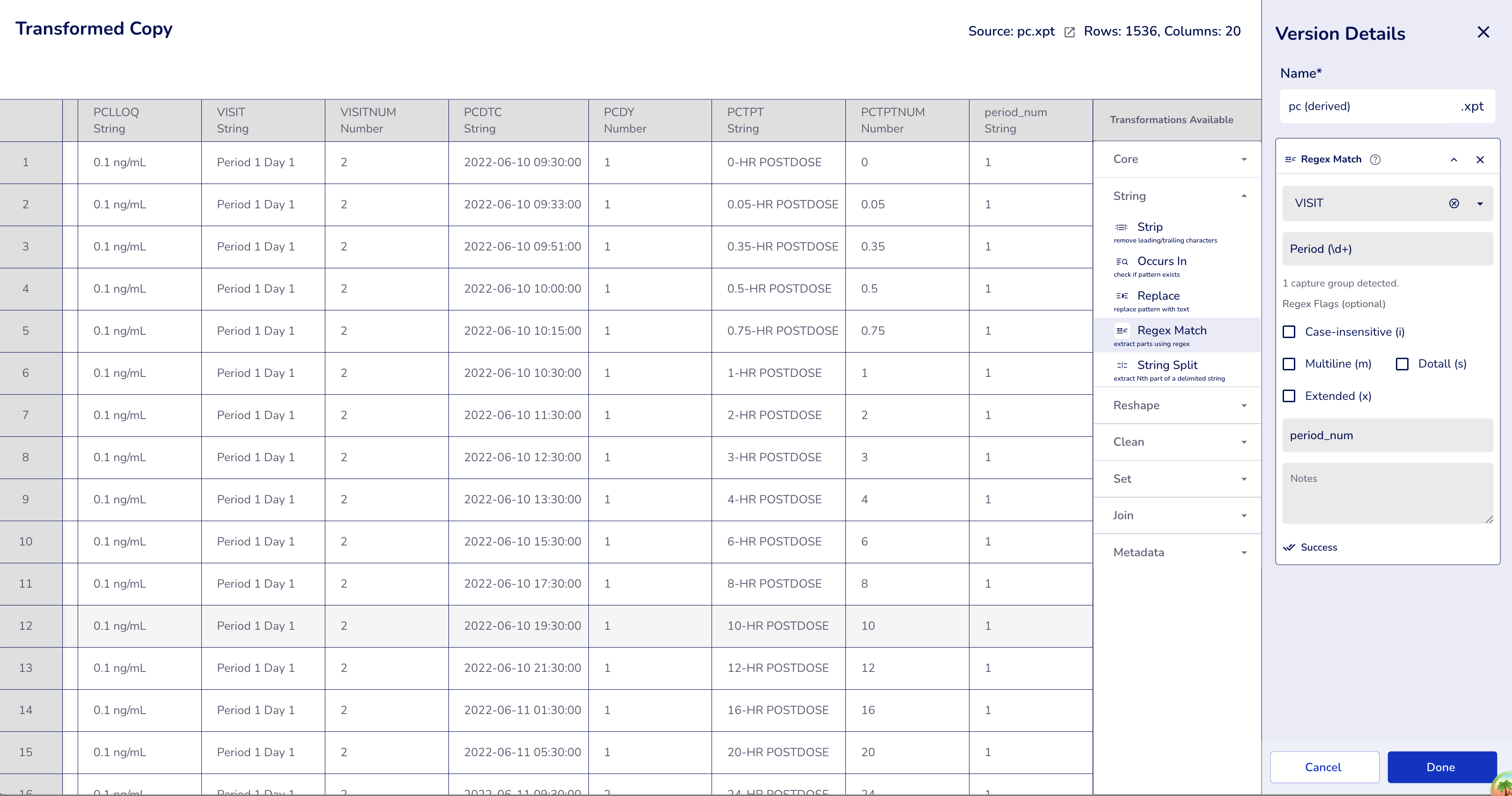
Case-sensitive (no flags):
- Column:
VISIT - Pattern:
Period (\d+)(note capital "P") - Flags: `` (empty - case-sensitive)
- Output Column:
period_num
Result: Only matches when case is exact
- "Period 1 Day 1" → "1" ✓
- "Period 2 Day 1" → "2" ✓
- "period 1 Day 1" → missing ✗ (lowercase "p" doesn't match)
- "PERIOD 3 Day 1" → missing ✗ (uppercase doesn't match)
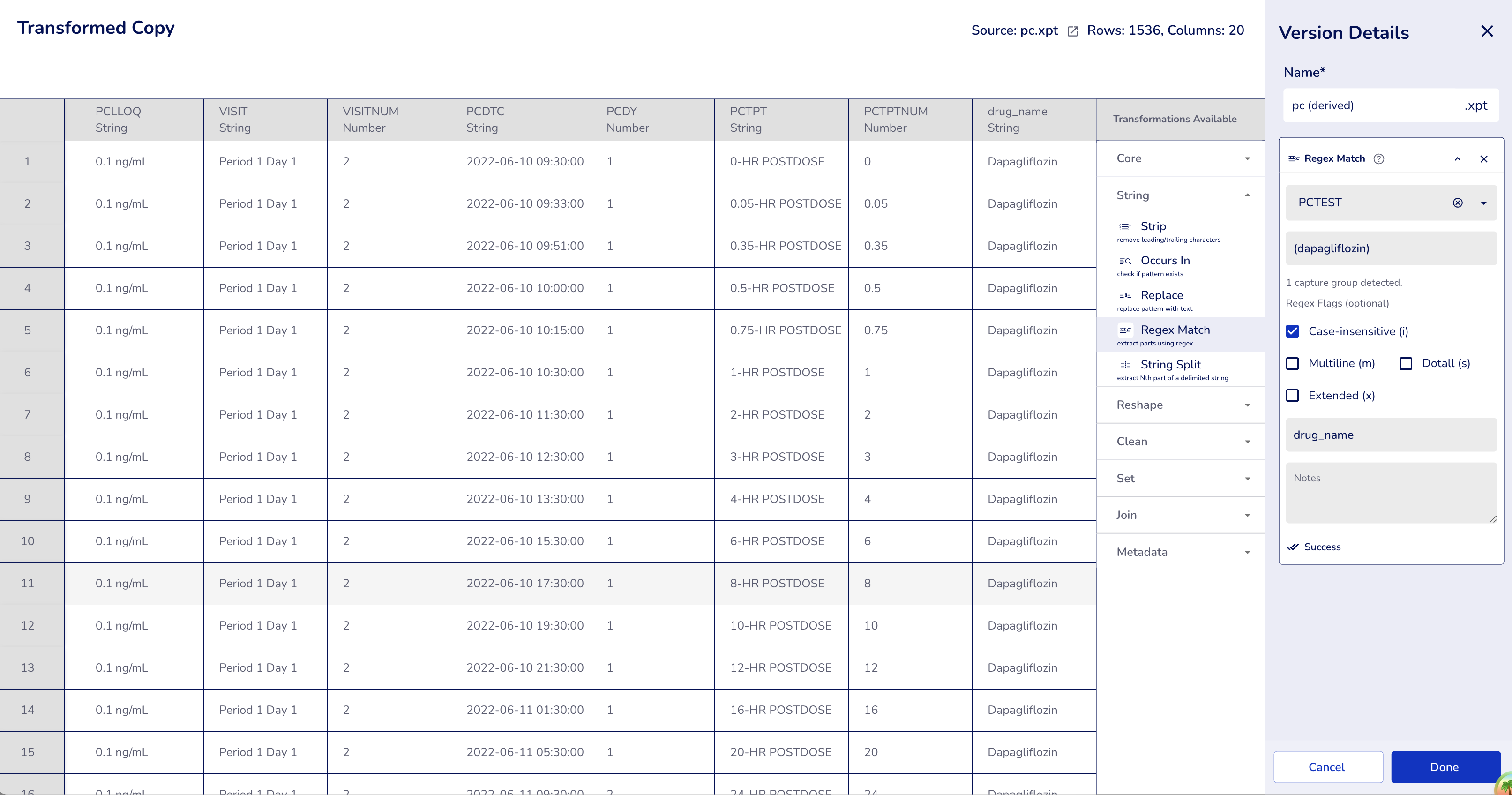
Case-insensitive (flag: "i"):
- Column:
PCTEST(PK Test Name) - Pattern:
(dapagliflozin)(all lowercase) - Flags:
i(case-insensitive) - Output Column:
drug_name
Result: Matches regardless of case
- "Dapagliflozin" → "Dapagliflozin" ✓
- "dapagliflozin" → "dapagliflozin" ✓
- "DAPAGLIFLOZIN" → "DAPAGLIFLOZIN" ✓
- "DaPaGlIfLoZiN" → "DaPaGlIfLoZiN" ✓ (matches any case variation)
Example 4: Multiple Flags with Multiple Output Columns
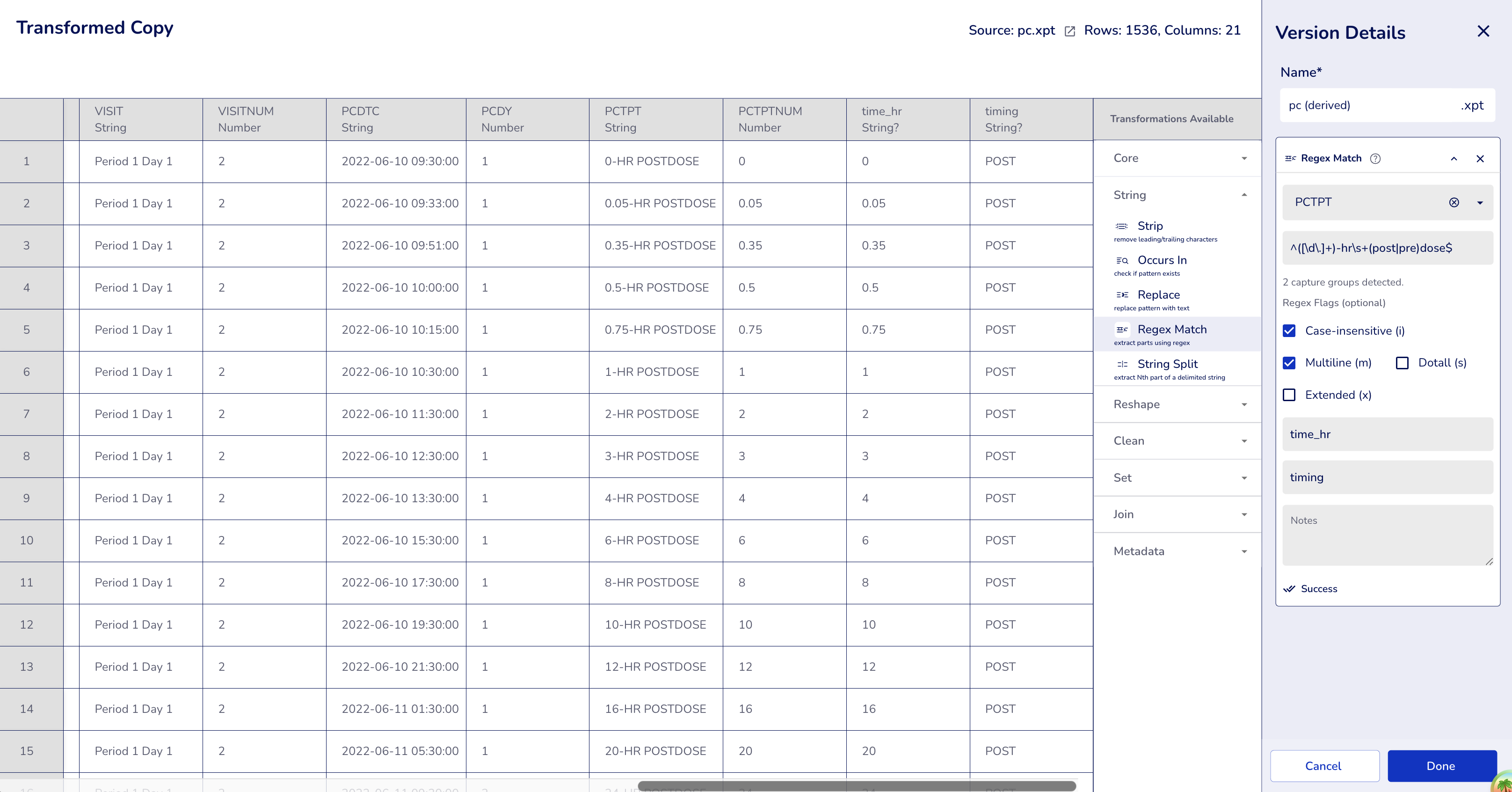
Combine multiple flags for flexible matching with complex patterns.
Configuration:
- Column:
PCTPT(PK Time Point) - Pattern:
^([\d\.]+)-hr\s+(post|pre)dose$(note lowercase in pattern) - Flags:
im(case-insensitive + multiline) - Output Columns:
- Column 1:
time_hr - Column 2:
timing
- Column 1:
Result: Flexible matching with multiple capture groups
- "0-HR POSTDOSE" → time_hr="0", timing="POST" ✓
- "0.05-Hr Postdose" → time_hr="0.05", timing="Post" ✓
- "1-hr postdose" → time_hr="1", timing="post" ✓
- "24-HR POSTDOSE" → time_hr="24", timing="POST" ✓
Regex Flags
The optional Flags field allows you to control pattern matching behavior. Use flags individually or combine them for more flexible matching:
Available flags:
i- Case-insensitive matching (e.g., "hr" matches "HR", "Hr", "hr")m- Multiline mode (^ and $ anchors match line boundaries)s- Dotall mode (. matches newlines)x- Extended mode (ignore whitespace in pattern)
Common flag combinations:
i: Case-insensitive onlyim: Case-insensitive + multiline (recommended for most text parsing)ims: Add dotall if your pattern needs.to match newlinesimsx: Add extended mode for complex patterns with whitespace for readability
Boolean Mode (No Capture Groups)
When your pattern has no capture groups, Regex Match returns a boolean (true/false) column instead:
Example - Checking if VISIT contains "Period":
- Column:
VISIT - Pattern:
Period \d+(no parentheses - no capture groups) - Flags: `` (empty)
- Output Column:
has_period - Result:
- "Period 1 Day 1" → true
- "Screening" → false
- "Period 2 Day 1" → true
Understanding Capture Groups
Capture groups are defined by parentheses () in your regex pattern:
(Drug [AB]): First capture group - matches "Drug A" or "Drug B"(\d+): Second capture group - matches one or more digits([Mm][Gg]): Third capture group - matches "mg", "MG", "Mg", or "mG"
Non-capturing groups (?:...) are not extracted as separate columns but can still be used for grouping in the pattern.
Regex Pattern Tips
Common patterns:
\d- matches any digit (0-9)\d+- matches one or more digits[AB]- matches either A or B[a-z]- matches any lowercase letter.*?- matches any characters (non-greedy)\s- matches whitespace (space, tab, newline)^- matches start of line (withmflag)$- matches end of line (withmflag)
Best practices:
- Use non-greedy quantifiers
.*?when extracting multiple values - Use specific patterns instead of broad ones for better accuracy
- Start with case-sensitive matching (empty flags), add
iflag if needed for case-insensitive - Use
imsflags for most flexible matching (case-insensitive + multiline + dotall)
Split
Split a text column into multiple columns using a delimiter.
Functionality:
- Divide text into parts based on a specified delimiter character
- Extract one specific part using the index (e.g., first part, second part)
- Create a new column with the extracted value
- Useful for parsing structured text like identifiers, dosages, or time points
- Handles multiple delimiter types (space, comma, hyphen, underscore, etc.)
Example 1: Extract Number from "0.1 ng/mL"
Configuration:
- Column:
PCLLOQ(Lower Limit of Quantification) - Delimiter:
(space character) - Index:
1(first part) - Output Column:
ALLOQ
Result: ALLOQ = "0.1"
- "0.1 ng/mL" → "0.1"
- "0.05 ng/mL" → "0.05"
- "10 ng/mL" → "10"
Example 2: Split "DAPA01-001" into Study ID (First Part)
Configuration:
- Column:
USUBJID(Unique Subject ID) - Delimiter:
-(hyphen) - Index:
1(first part) - Output Column:
STUDYID
Result: STUDYID = "DAPA01"
- "DAPA01-001" → "DAPA01"
- "DAPA01-002" → "DAPA01"
- "DAPA01-010" → "DAPA01"
Example 3: Extract Time Value from "4-HR POSTDOSE"
Configuration:
- Column:
PCTPT(PK Time Point) - Delimiter:
-(hyphen) - Index:
1(first part) - Output Column:
NOMTIME
Result: NOMTIME = "4"
- "4-HR POSTDOSE" → "4"
- "0.05-HR POSTDOSE" → "0.05"
- "24-HR POSTDOSE" → "24"
Common Delimiters:
(space) - for separating values with spaces-(hyphen) - for identifiers or time specifications.(period) - for decimal numbers or version numbers,(comma) - for comma-separated values_(underscore) - for variable names or codes
Tips:
- The index starts at 1 for the first part
- If the index exceeds the number of parts, the result is missing
- The delimiter is case-sensitive